Vapi
Connect your Vapi AI assistants to KrosAI phone numbers for emerging market coverage.
Overview
Vapi is an AI voice assistant platform. With KrosAI, you can route calls from your African and Middle Eastern phone numbers to Vapi assistants.
Prerequisites
- KrosAI account with verified KYC
- At least one KrosAI phone number
- Vapi account with an assistant created
Setup Steps
'
1
Configure SIP Trunk in Vapi
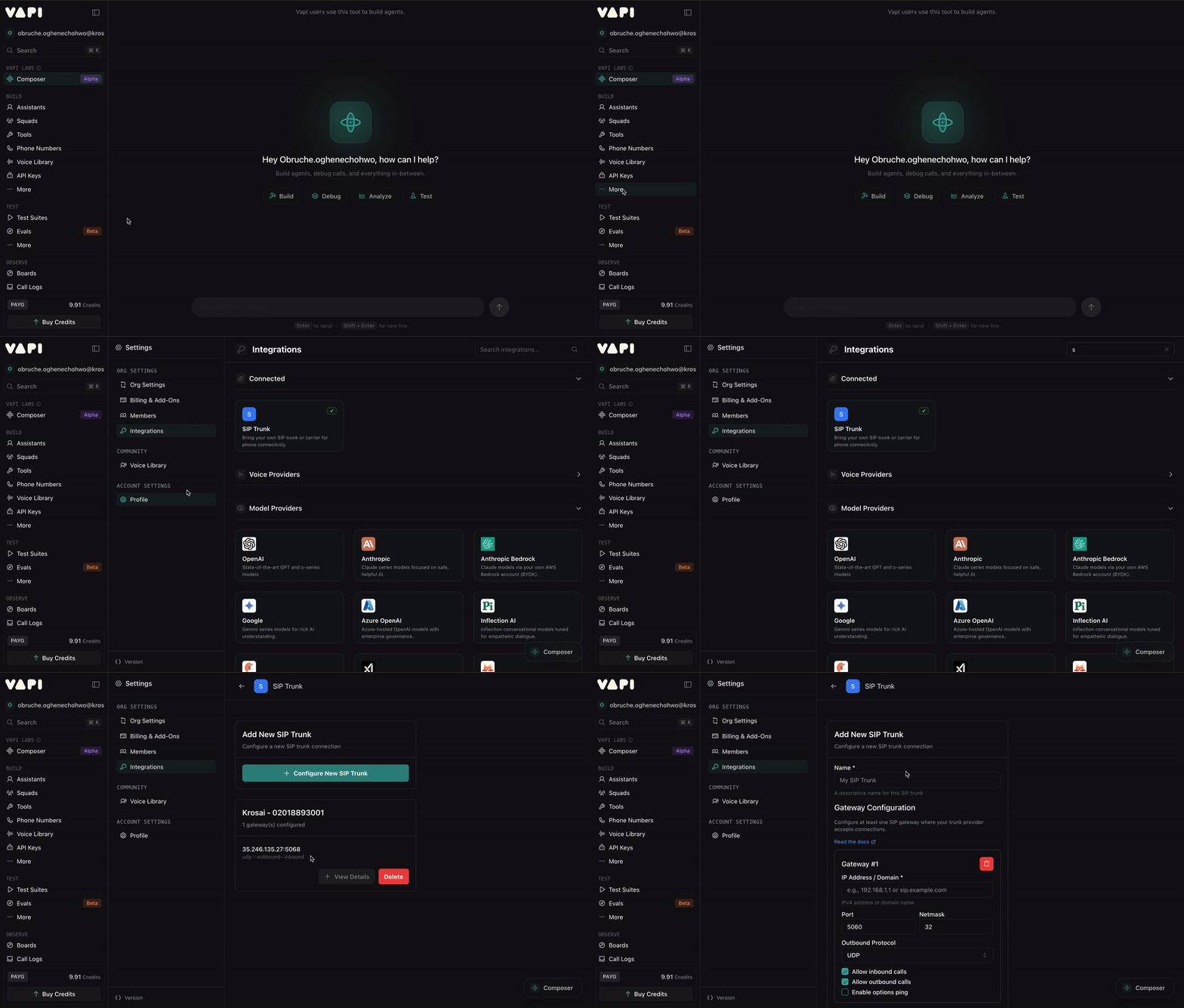
- On your Vapi Dashboard, navigate to Integrations
- Search for SIP Trunk and click on it
- Click Configure New SIP Trunk
- On KrosAI Dashboard, open and copy the SIP credentials of your phone number
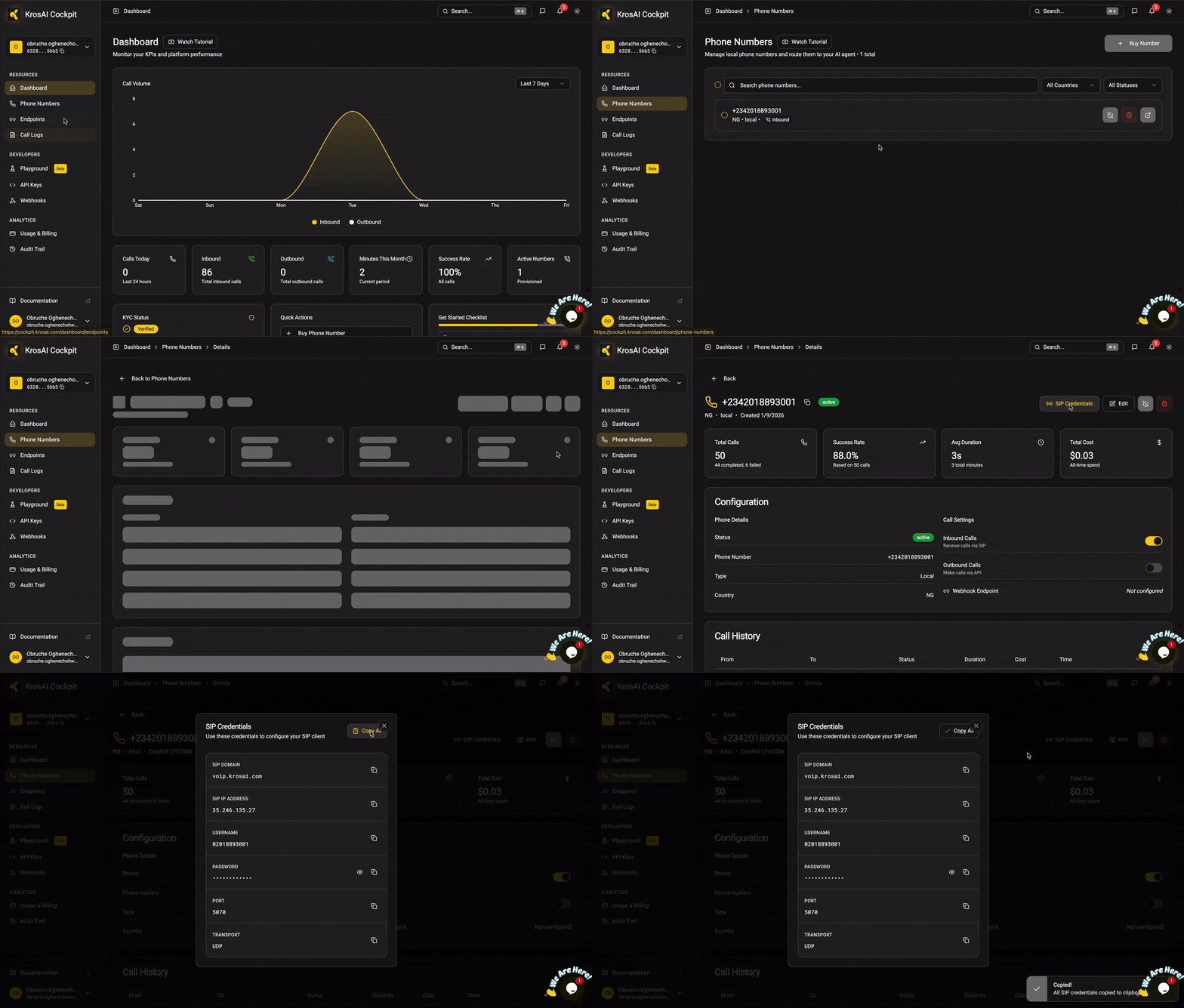
- Fill the New SIP Trunk form in Vapi with your KrosAI phone number SIP credentials
- Note: Use the SIP credential SIP IP Address instead of the SIP Domain
- Save the SIP Trunk
2
BYO KrosAI Phone Number to Vapi
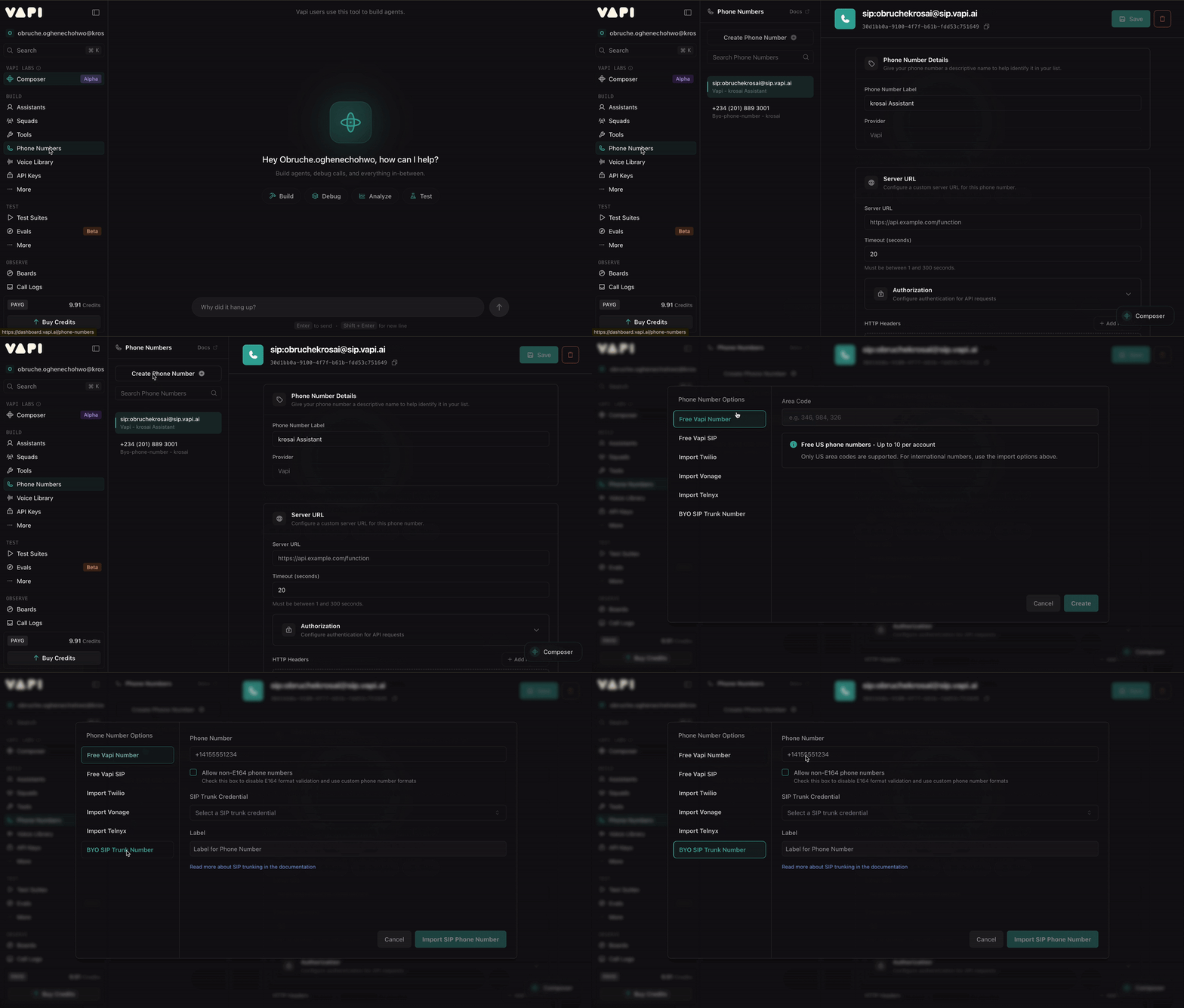
- Open Phone Number on Vapi Dashboard
- Click Create Phone Number
- Select BYO SIP Trunk Number
- Enter your KrosAI number with country code in the Phone Number field
- On the SIP Trunk Credential dropdown, select the SIP Trunk you just created
- Click Import SIP Phone Number
3
Get Your Vapi Assistant ID
- On your Vapi Dashboard, navigate to Assistants
- Select your assistant
- Copy the Assistant ID
4
Connect Vapi in KrosAI
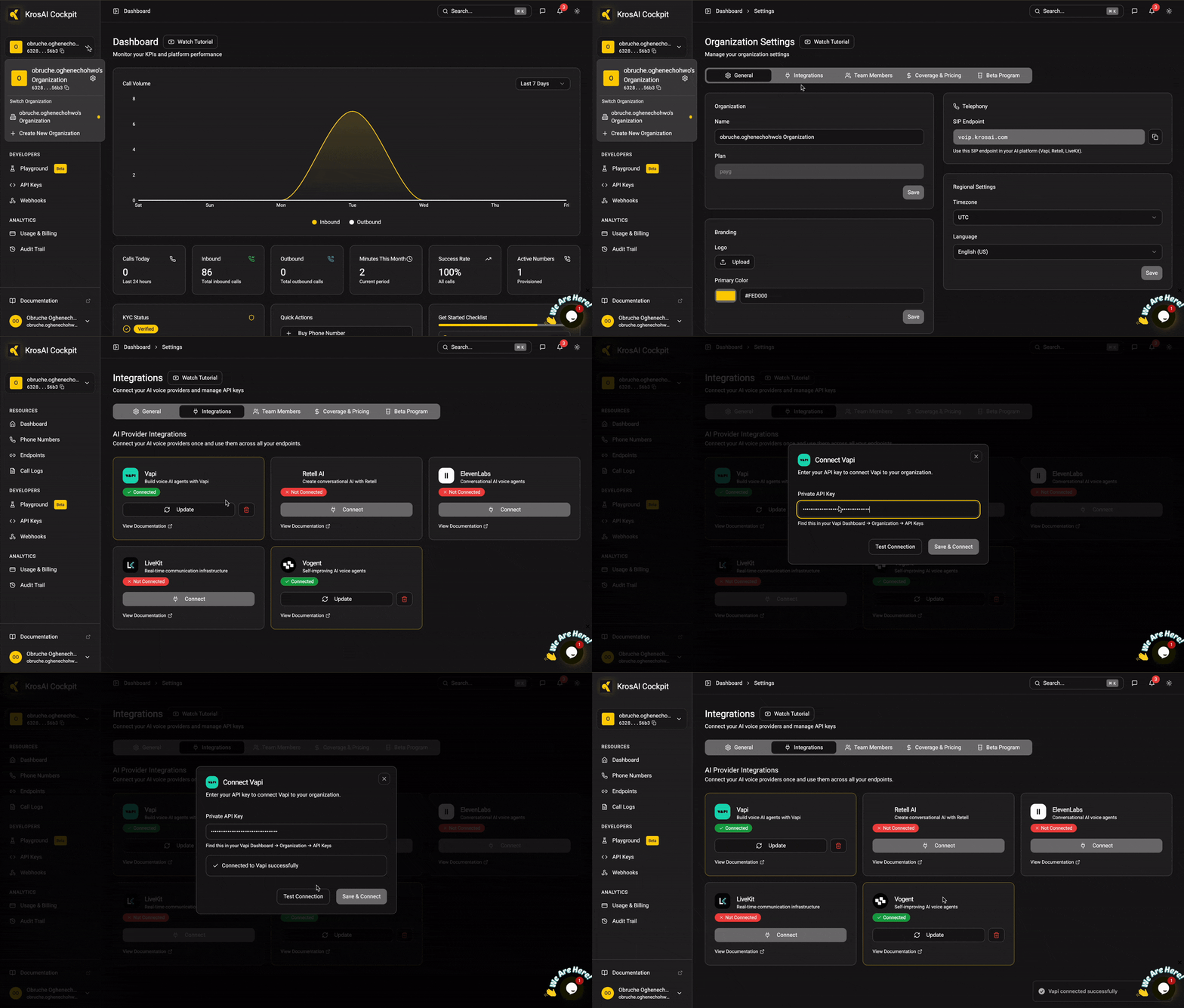
- Go to Settings → Integrations in your KrosAI Dashboard
- Click Connect next to Vapi
- Enter your Vapi API Key
- Click Save & Test
5
Create Endpoint and Attach Phone Number
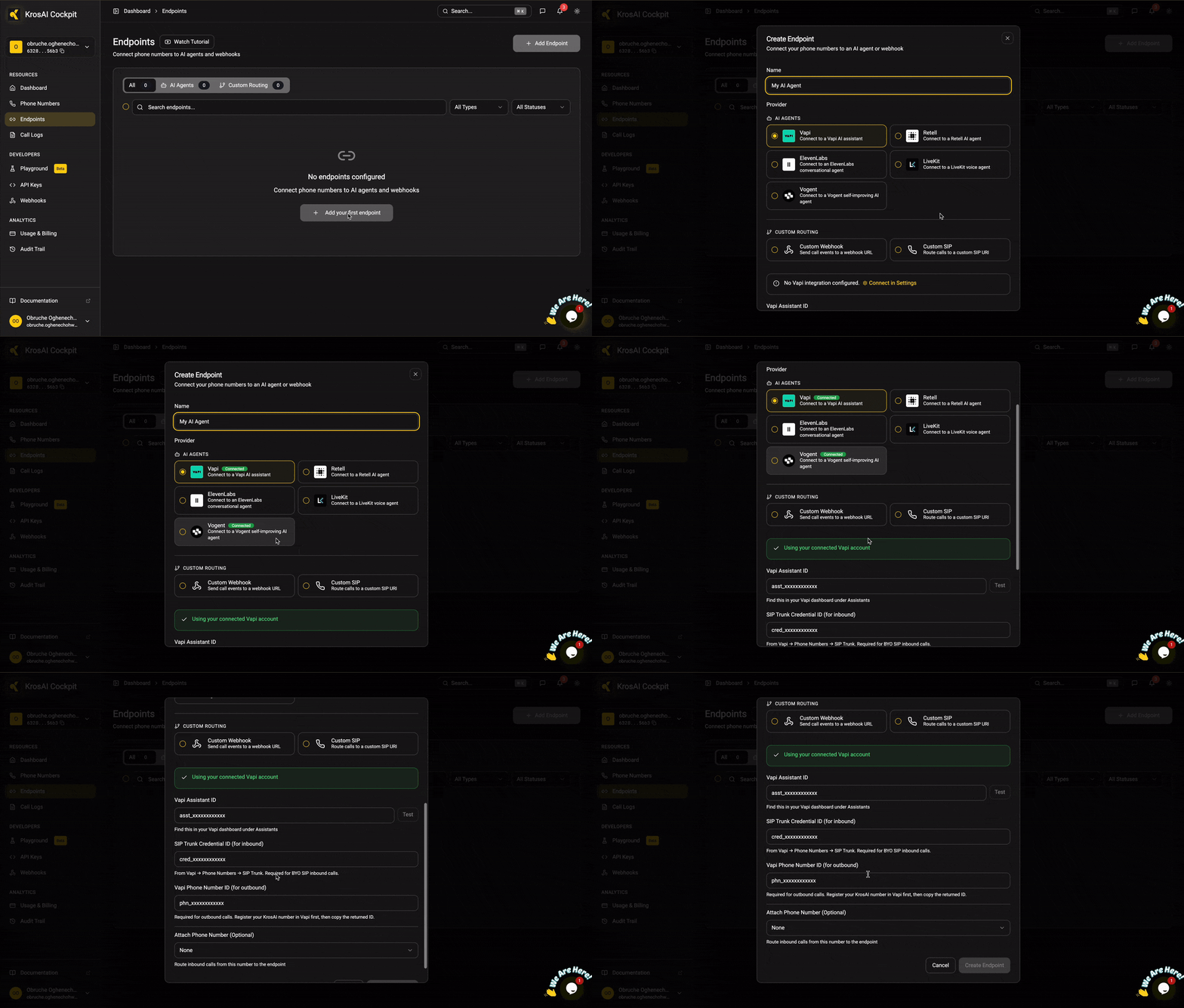
- On your KrosAI Dashboard, click Endpoints
- Click Add Endpoint
- Enter a Name
- Select Vapi as your AI agent provider
- Enter the Vapi Assistant ID
- Enter your Vapi SIP Trunk Credential ID
- Select the phone number to attach
- Finally, click Create Endpoint
6
Make Your First Calls
🎉 Congratulations! You’ve successfully connected your local phone number to your AI agent. Call the number to start a conversation with your agent.
Call Not Connecting
Call Not Connecting
- Verify your Vapi API key is correct
- Check the assistant ID exists
- Ensure the assistant is active in Vapi
- Review KrosAI Dashboard → Calls for error details
Audio Issues
Audio Issues
- Check your Vapi assistant's voice settings
- Verify SIP connectivity in Vapi Dashboard
- Review call events for media errors
Assistant Not Responding
Assistant Not Responding
- Test the assistant directly in Vapi
- Check for LLM errors in Vapi logs
- Verify function calling permissions
Was this section helpful?


On this page
- Vapi