Display Cart Items on Terminal
The Display Cart Items feature allows you to show line items on the terminal screen, enabling customers to review their cart during checkout. This can be used flexibly depending on your integration flow.
Terminal Listening Behavior
When you send only line item requests, the terminal remains in listening mode. This allows you to continue sending updates as items are added to the cart. However, once a payment request is sent—either on its own or as part of a combined request—the terminal exits listening mode and cannot accept further requests until it returns to the listening screen.
Customer Alert with notifyCustomer
To enhance the customer’s checkout experience, the notifyCustomer tag can be used to trigger an audible tone on the payment terminal whenever a cart update is received. This is particularly useful in fast-paced retail environments where items are scanned rapidly or when the customer’s attention needs to be directed toward the screen.
By setting this optional Boolean field to true, the terminal emits a subtle notification sound every time a new cart item is displayed. If set to false or omitted, the terminal will update silently without auditory cues.
Use Case 1: Real-Time Cart Updates
This flow is suitable for environments where items are added one by one, such as scanning at a supermarket checkout. The terminal updates in real time to display the cart contents as they’re sent.
The key point here is that the terminal only shows what is included in each request—it doesn’t maintain a history of previous items. This gives you full control over how the cart appears on the terminal.
There are two main ways to use this:
Full Cart View
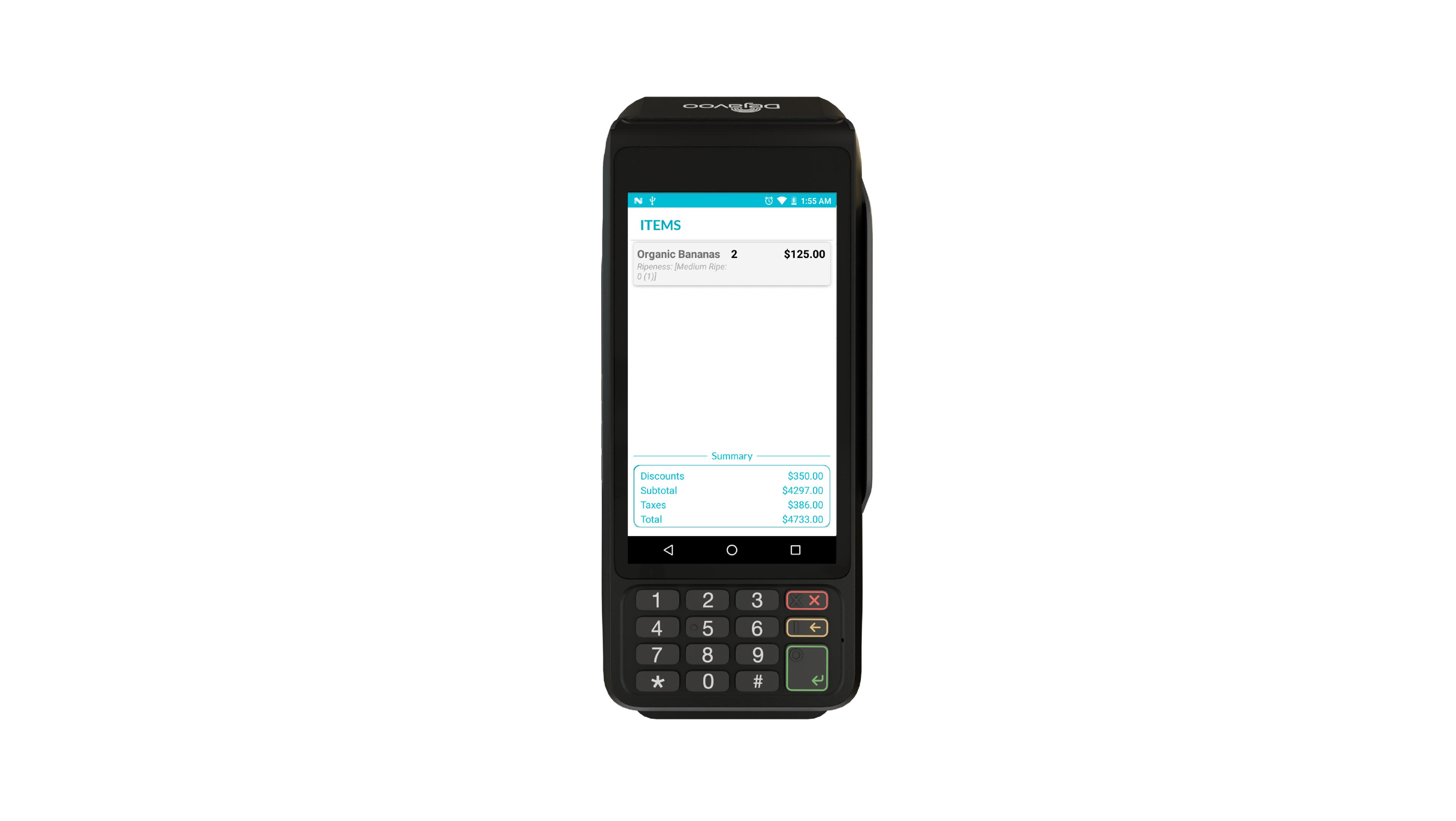
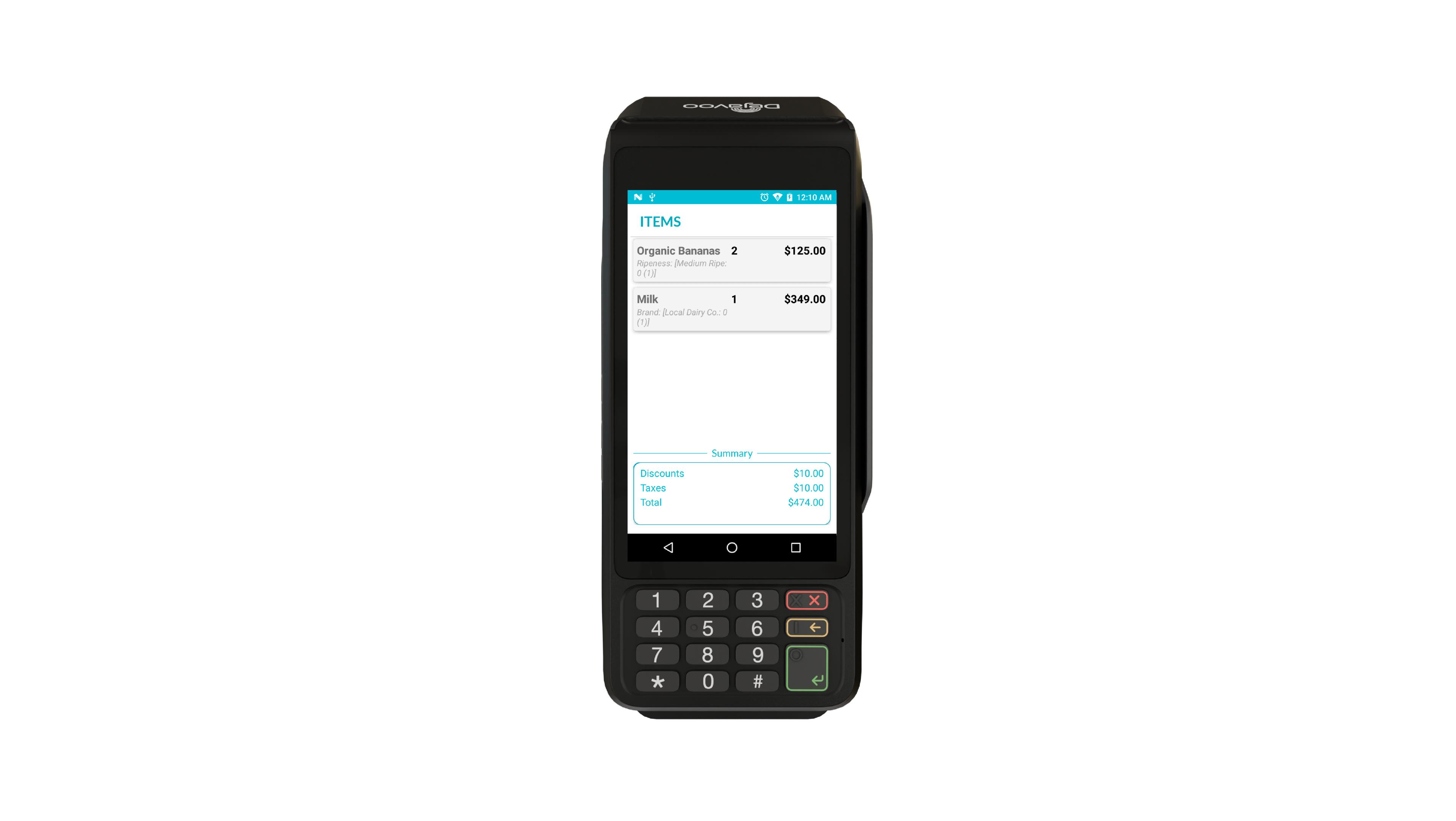
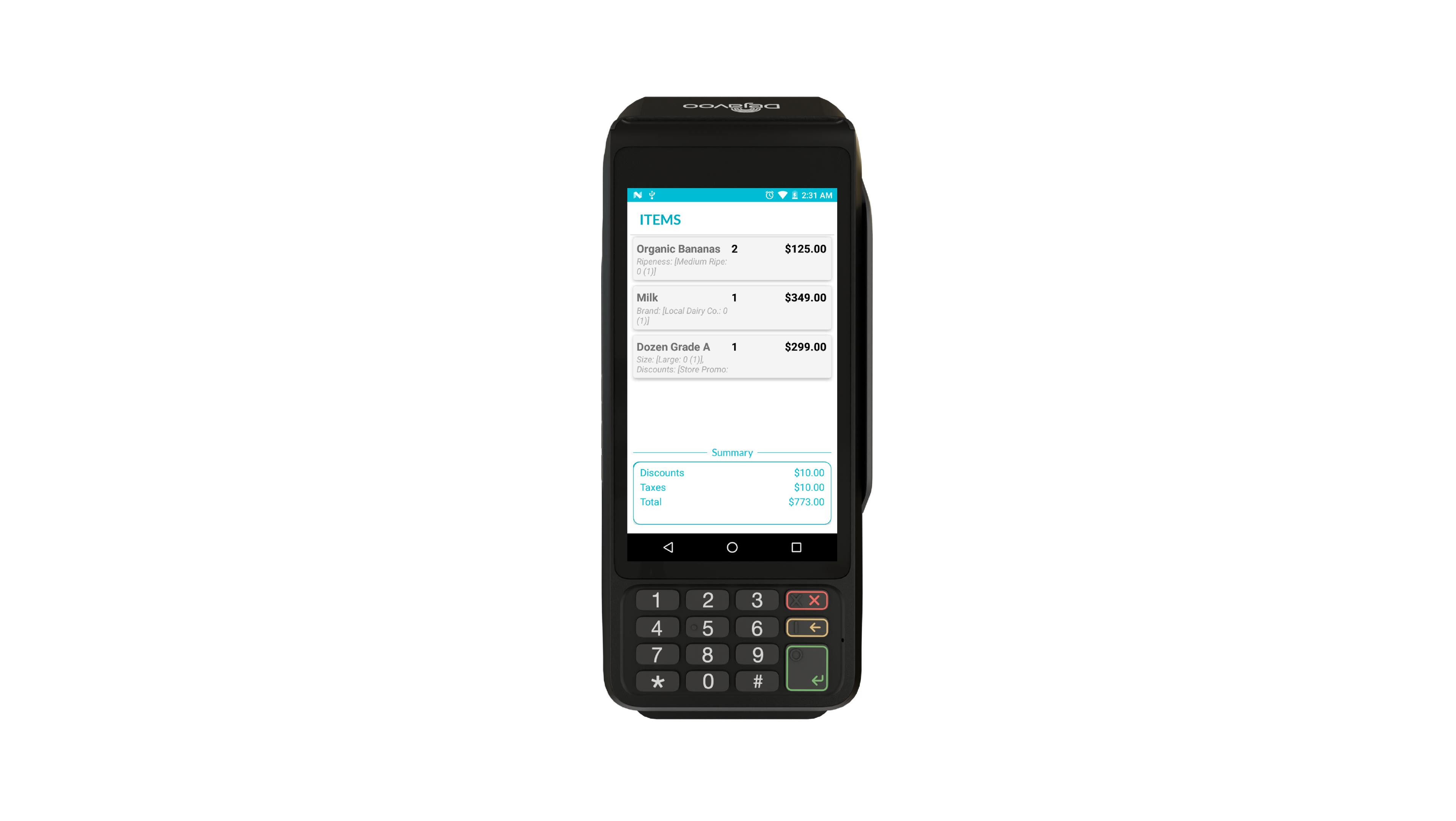
Send the full list of items in each request, so the terminal displays an incrementally growing cart.
Example:
- Send: Item A → terminal shows: A
- Send: A, B → terminal shows: A, B
- Send: A, B, C → terminal shows: A, B, CS
Single Item View
- Send only the new item each time. The terminal will show just that item, replacing the previous one.
Example:
- Send: Item A → terminal shows: A
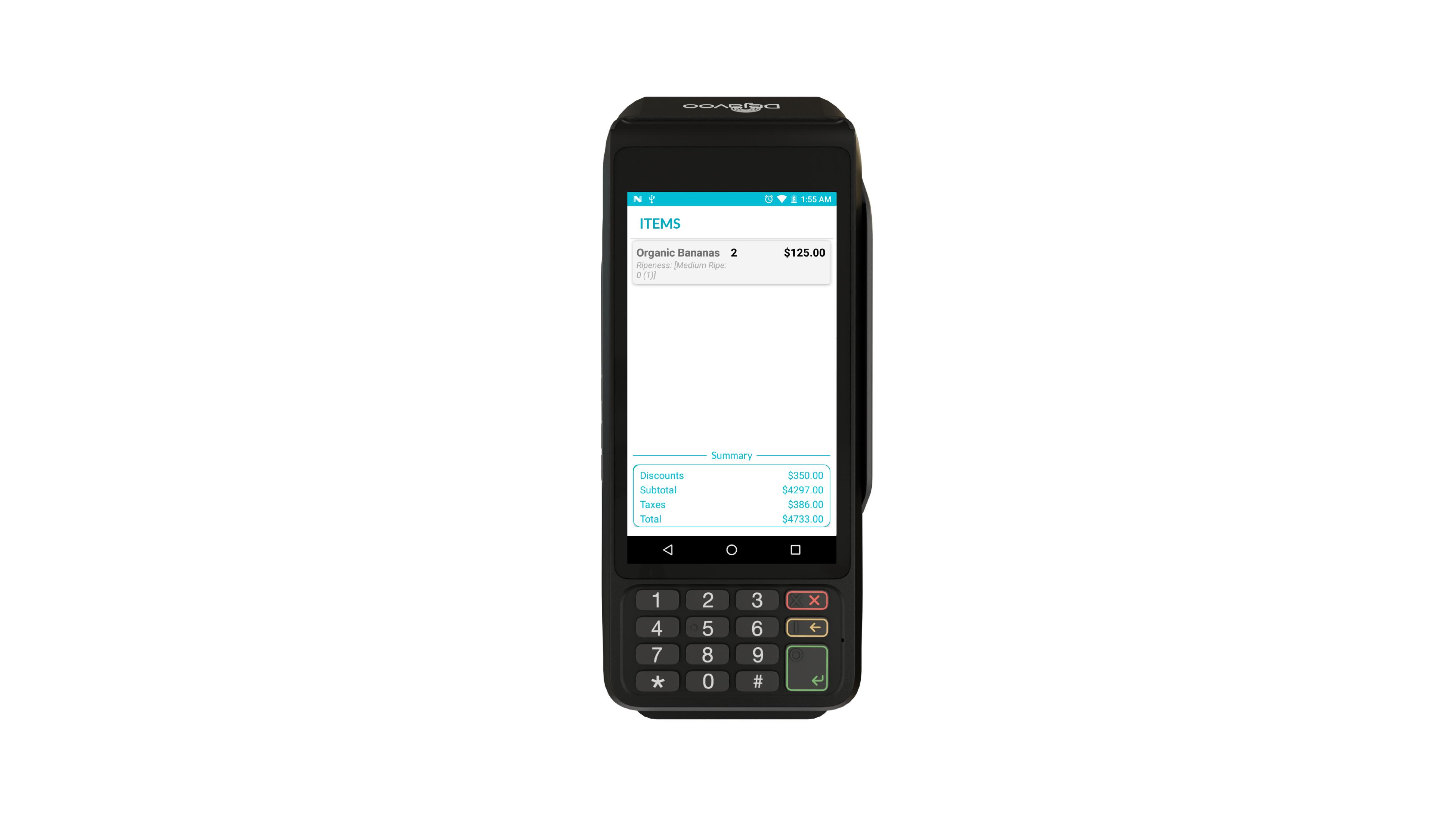
- Send: Item B → terminal shows: B
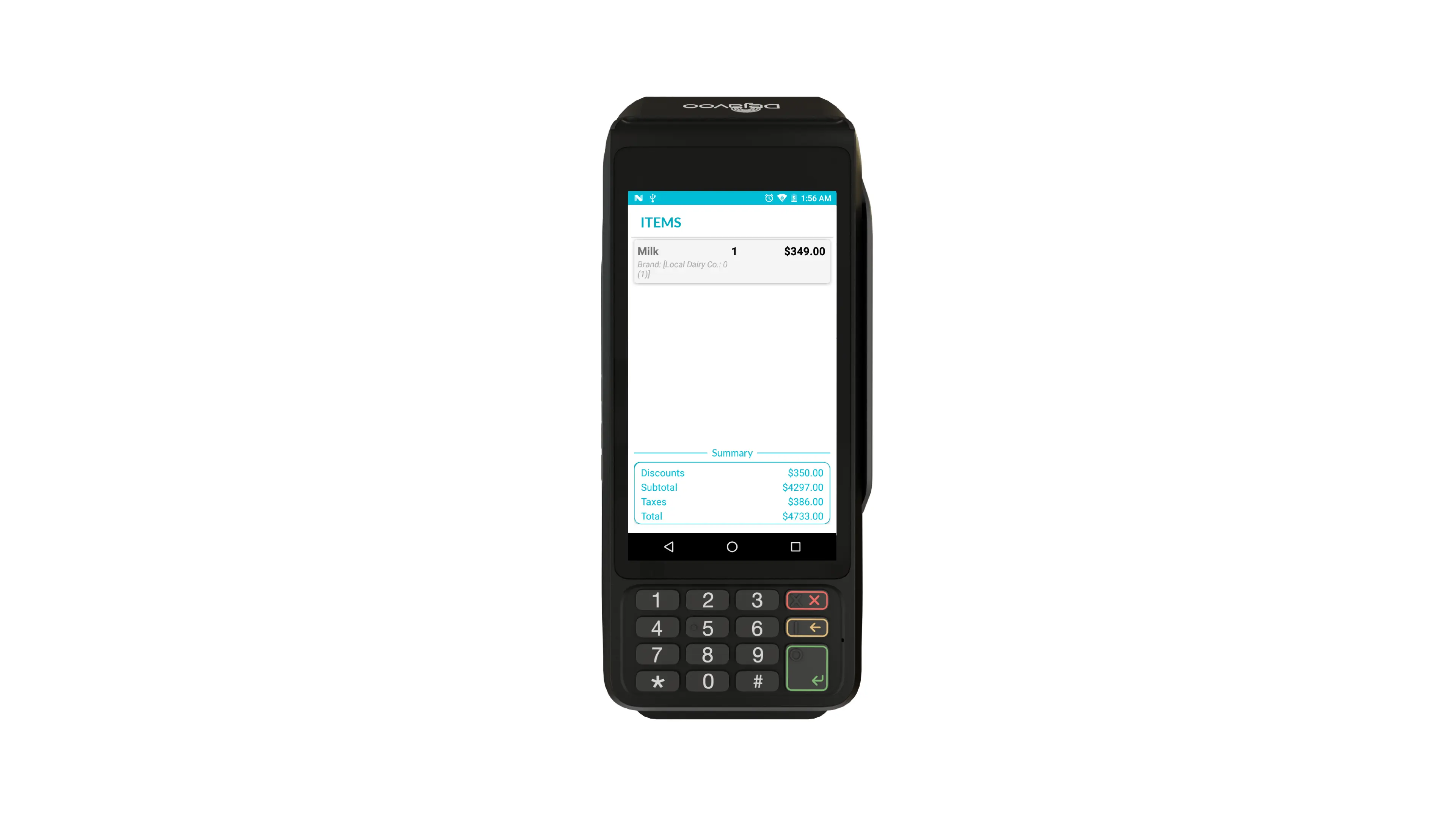
- Send: Item C → terminal shows: C
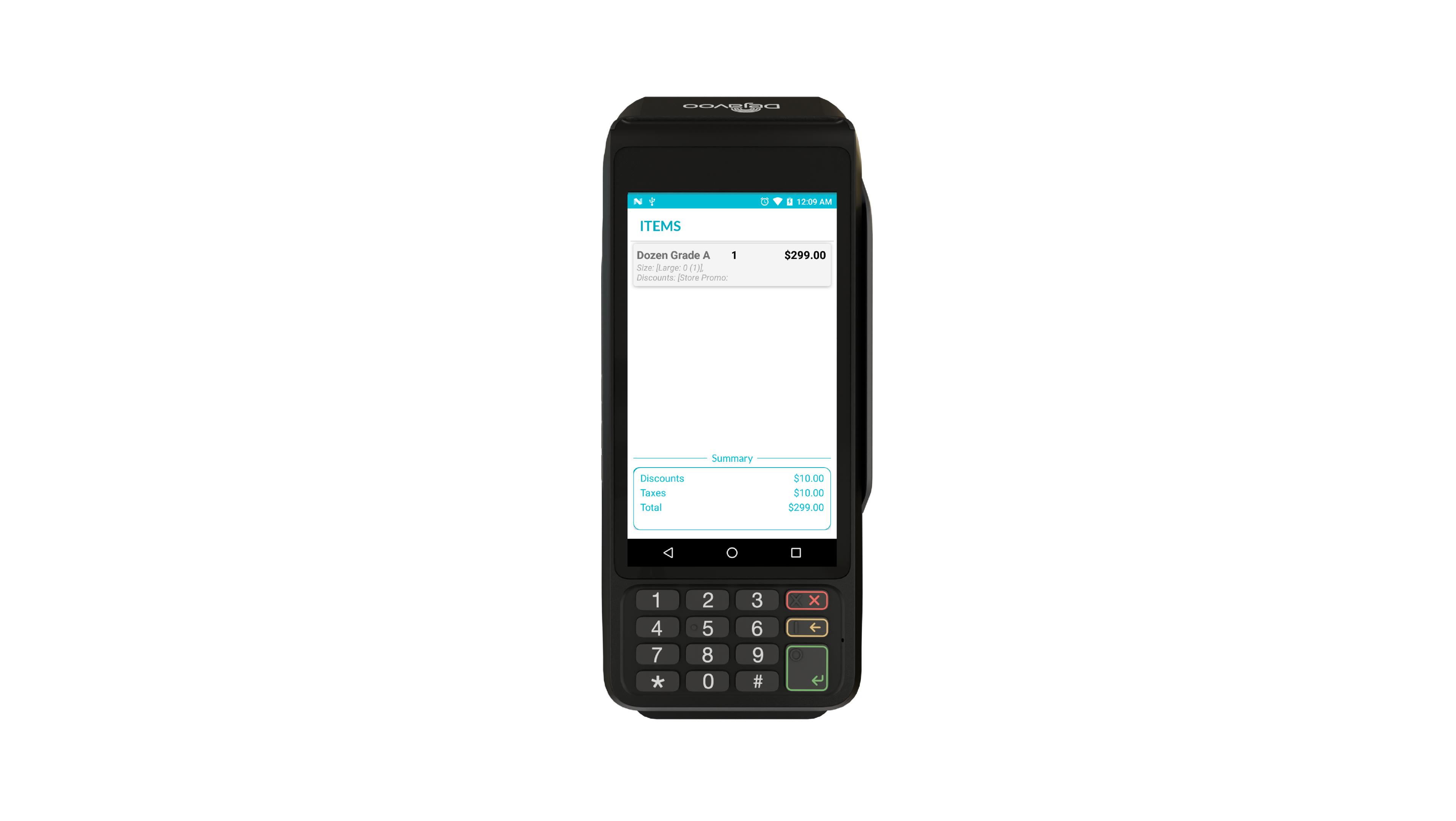
Whether the terminal displays a running list of all items or just the most recent one depends entirely on how you format the line item request. The terminal simply displays what it receives.
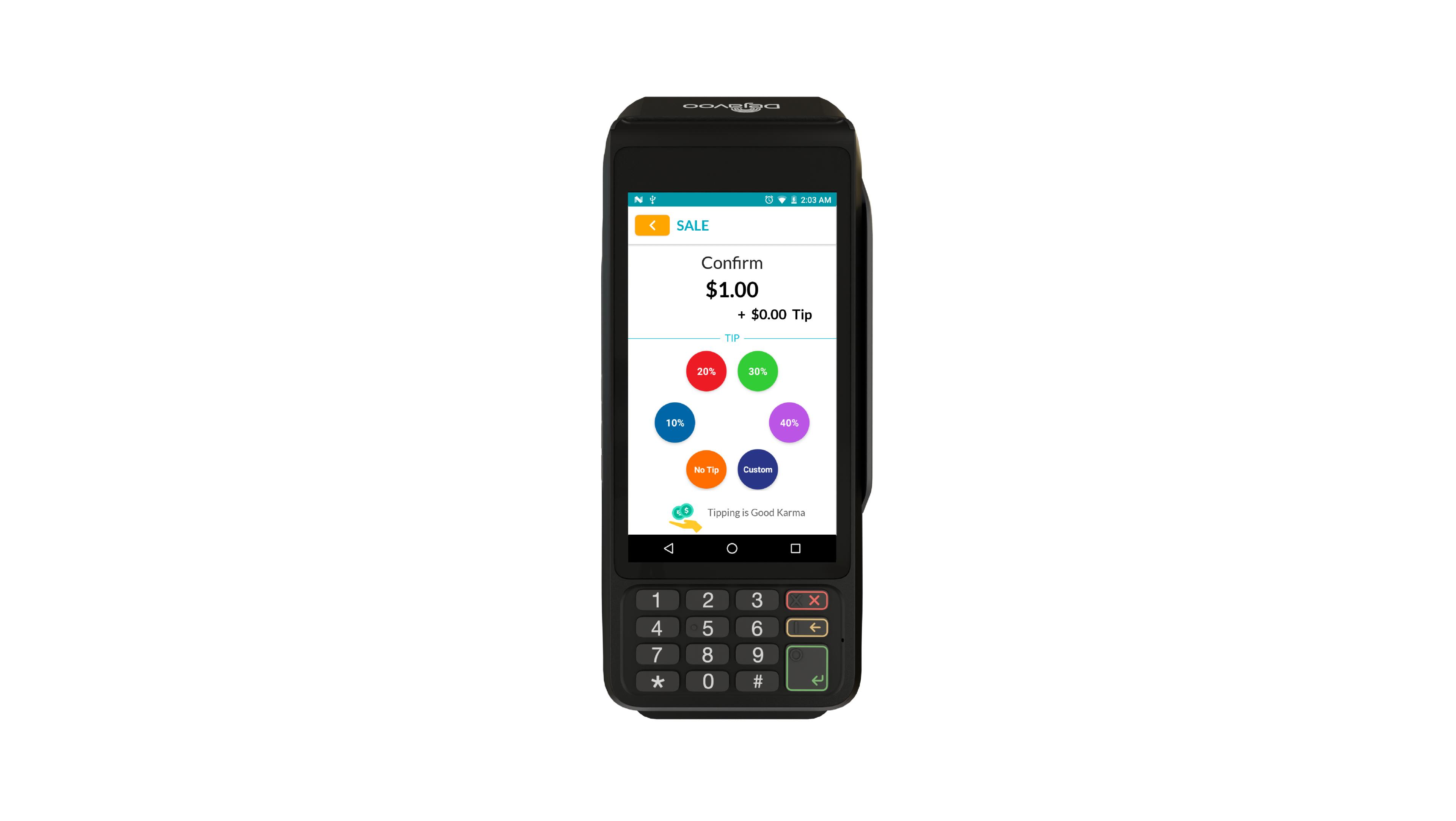
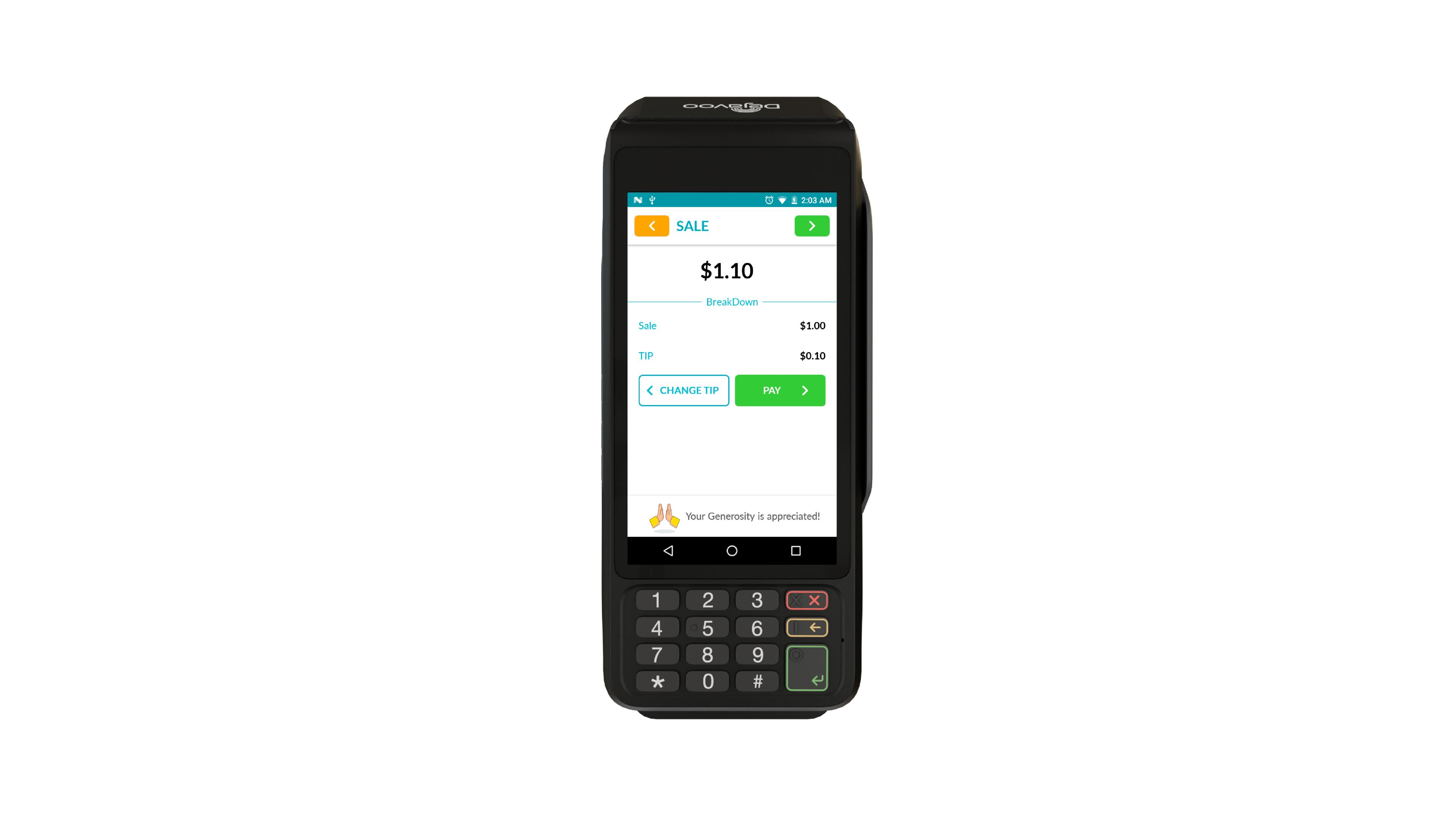
Once the cart is ready, send a payment request. The terminal automatically transitions to the payment screen, and if tipping is enabled for the TPN, the tip screen will appear before proceeding.
Sample Request: Displaying Cart Items Only
This XML request is used when you want to show cart items on the terminal screen without initiating payment. The terminal remains in listening mode, allowing additional line items to be sent and displayed in real time.
<request>
<AuthKey>f9eGebRfss</AuthKey>
<TPN>z11devtest03</TPN>
<PosID>2122</PosID>
<notifyCustomer>true</notifyCustomer> <!-- Plays a tone on the terminal when the cart is updated to alert the customer -->
<Cart>
<Amounts>
<Amount>
<Name>Discounts</Name>
<Value>1141</Value>
</Amount>
<Amount>
<Name>Subtotal</Name>
<Value>2154</Value>
</Amount>
<Amount>
<Name>Taxes</Name>
<Value>599</Value>
</Amount>
<Amount>
<Name>Total</Name>
<Value>2753</Value>
<Total/>
</Amount>
</Amounts>
<Items>
<Item>
<Name>Lunch 4</Name>
<Price>807</Price>
<UnitPrice></UnitPrice>
<Quantity>1</Quantity>
<CustomInfos>
<CustomInfo>
<Name>Total</Name>
<Value>2753</Value>
</CustomInfo>
<CustomInfo>
<Name>Total</Name>
<Value>2753</Value>
</CustomInfo>
</CustomInfos>
<AdditionalInfo></AdditionalInfo>
<Modifiers>
<Modifier>
<Name>Modifier 3</Name>
<Options>
<Option>
<Name>Value 2</Name>
<Price>233</Price>
<Quantity>1</Quantity>
</Option>
</Options>
</Modifier>
<Modifier>
<Name></Name>
<Options>
<Option>
<Name>Business Lunch</Name>
<Price>-208</Price>
<Quantity>1</Quantity>
</Option>
</Options>
</Modifier>
<Modifier>
<Name></Name>
<Options>
<Option>
<Name>AutoDisc10</Name>
<Price>-104</Price>
<Quantity>1</Quantity>
</Option>
</Options>
</Modifier>
</Modifiers>
</Item>
<Item>
<Name>Borsch</Name>
<Price>723</Price>
<UnitPrice></UnitPrice>
<Quantity>1</Quantity>
<CustomInfos>
<CustomInfo>
<Name>Total</Name>
<Value>2753</Value>
</CustomInfo>
<CustomInfo>
<Name>Total</Name>
<Value>2753</Value>
</CustomInfo>
</CustomInfos>
<AdditionalInfo></AdditionalInfo>
<Modifiers>
<Modifier>
<Name>Mix</Name>
<Options>
<Option>
<Name>Third</Name>
<Price>350</Price>
<Quantity>1</Quantity>
</Option>
</Options>
</Modifier>
<Modifier>
<Name>Mikhail Test</Name>
<Options></Options>
</Modifier>
<Modifier>
<Name>Fat</Name>
<Options>
<Option>
<Name>Low fat</Name>
<Price>1167</Price>
<Quantity>1</Quantity>
</Option>
</Options>
</Modifier>
<Modifier>
<Name></Name>
<Options>
<Option>
<Name>Glass</Name>
<Price>15</Price>
<Quantity>1</Quantity>
</Option>
</Options>
</Modifier>
<Modifier>
<Name></Name>
<Options>
<Option>
<Name>Business Lunch</Name>
<Price>-403</Price>
<Quantity>1</Quantity>
</Option>
</Options>
</Modifier>
<Modifier>
<Name></Name>
<Options>
<Option>
<Name>AutoDisc10</Name>
<Price>-202</Price>
<Quantity>1</Quantity>
</Option>
</Options>
</Modifier>
<Modifier>
<Name></Name>
<Options>
<Option>
<Name>Changed</Name>
<Price>-224</Price>
<Quantity>1</Quantity>
</Option>
</Options>
</Modifier>
</Modifiers>
</Item>
</Items>
</Cart>
</request>Use Case 2: Display Cart with Immediate Payment
In this flow, the POS sends a single request that includes both the full list of cart items and the payment request. The terminal displays the cart, along with a CHECKOUT button.
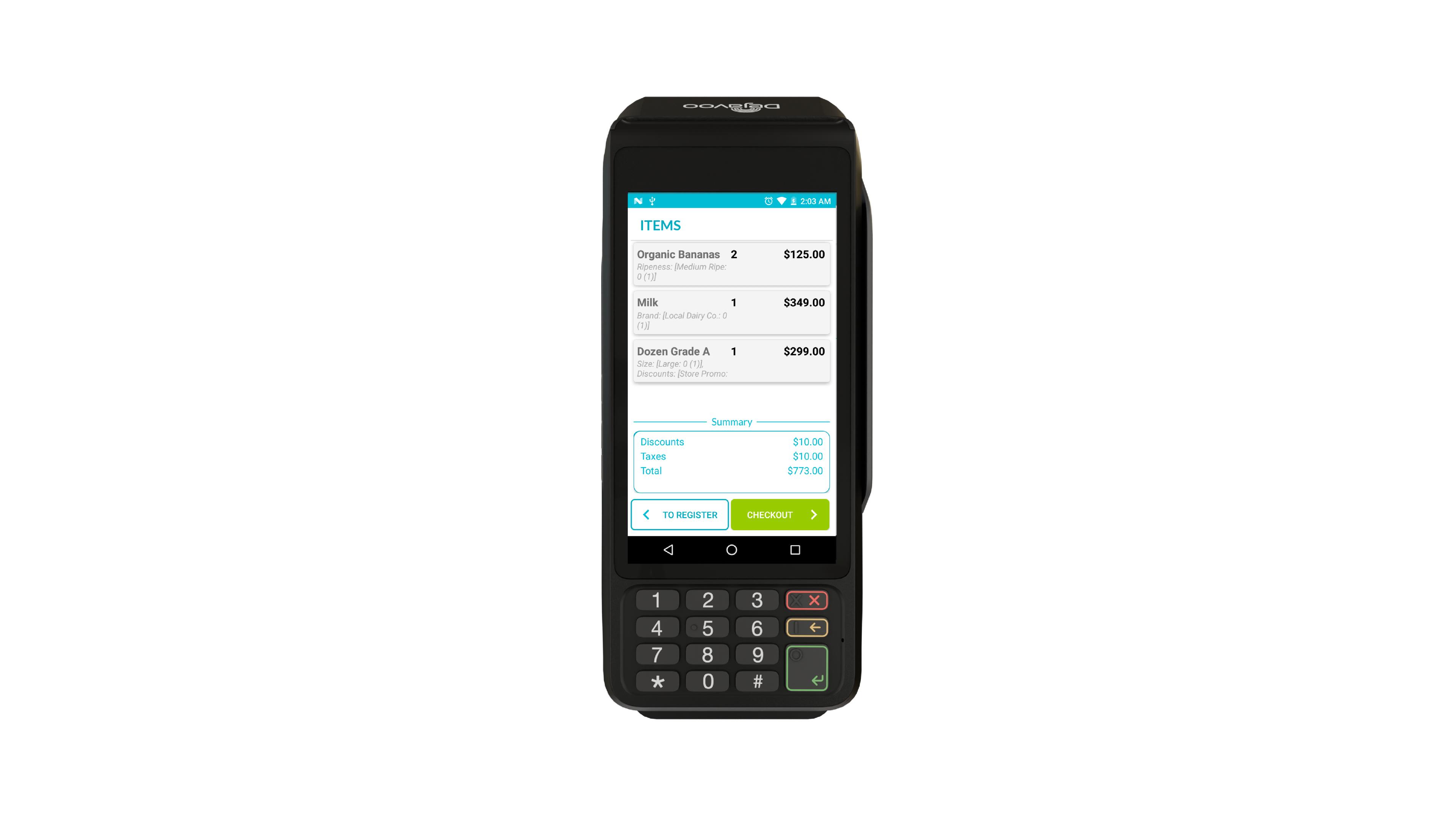
When the customer taps CHECKOUT, the terminal proceeds to payment.
While this may seem efficient, there’s a trade-off: it relies on the customer to press the CHECKOUT button on the terminal each time. This extra step can slow down the checkout process or lead to confusion—especially in fast-paced or unattended environments.
For smoother operation, especially in retail settings with high throughput or minimal staff interaction, it’s often better to keep the checkout action under the POS’s control by using real-time cart updates followed by a separate payment request.


On this page
- Display Cart Items on Terminal