
Batch Update from IDM Utilities Tool
Beginner | 15 Minutes
Business Problem
Your organization has a collection of digital documents in IDM that contain incorrect attributes, and you need to modify them in bulk. Alternatively, you may want to reorganize your data by updating multiple files. You are seeking an automated and efficient solution to accomplish this task in order to reduce labor costs.
📋 Requirements
|
If Java 11+ is used then JavaFX needs to be installed as well (https://openjfx.io/). The Utilities tool can be started from command line where the “module-path” points to the JavaFX directory:
java -Xms1024m -Xmx1024m –module-path “C:\Program Files\Java\javafx-sdk-11.0.1\lib” –add-modules=javafx.controls,javafx.fxml,javafx.web -jar Utilities-.jar
Tutorial
Batch updating documents via the Infor Document Management (IDM) Utilities tool allows mass changing of document metadata.
1
Finding the IDM Utilities Tool
To access the Batch Update function in IDM, navigate to the Control Center.
- Select the Tools tab → Click Utilities → Click Download.
This guide focuses specifically on the IDM Utilities' Bulk Import function.
2
Starting Up the Tool
There are two JAR files in the unzipped utilities package. The one to run does not have “sources” at the end.
The IDM Utilities tool can be run entirely from the command line, but a GUI is also available.
To launch the tool:
- Navigate to the folder.
- Type "cmd" in the folder address bar and press Enter (opens the command line in that folder).
- Run the following command:
java -jar <ExecutableJarFileName>.jarExample:java -jar Utilities-2022.08.00-47.20220728T090651Z.jar
3
Setting Up the IONAPI File
To connect IDM Utilities to your environment, generate an IONAPI file:
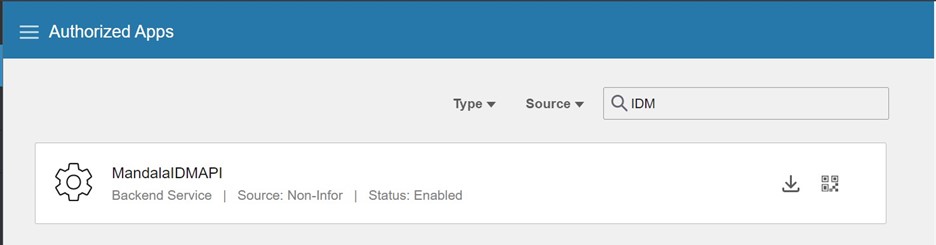
- Navigate to Infor API Gateway → Click Authorized Apps.
- Search for "IDM" (look for an API labeled "Backend Service").
Note: The name of this API may differ from the screenshot below. It should be a "Backend Service" API.
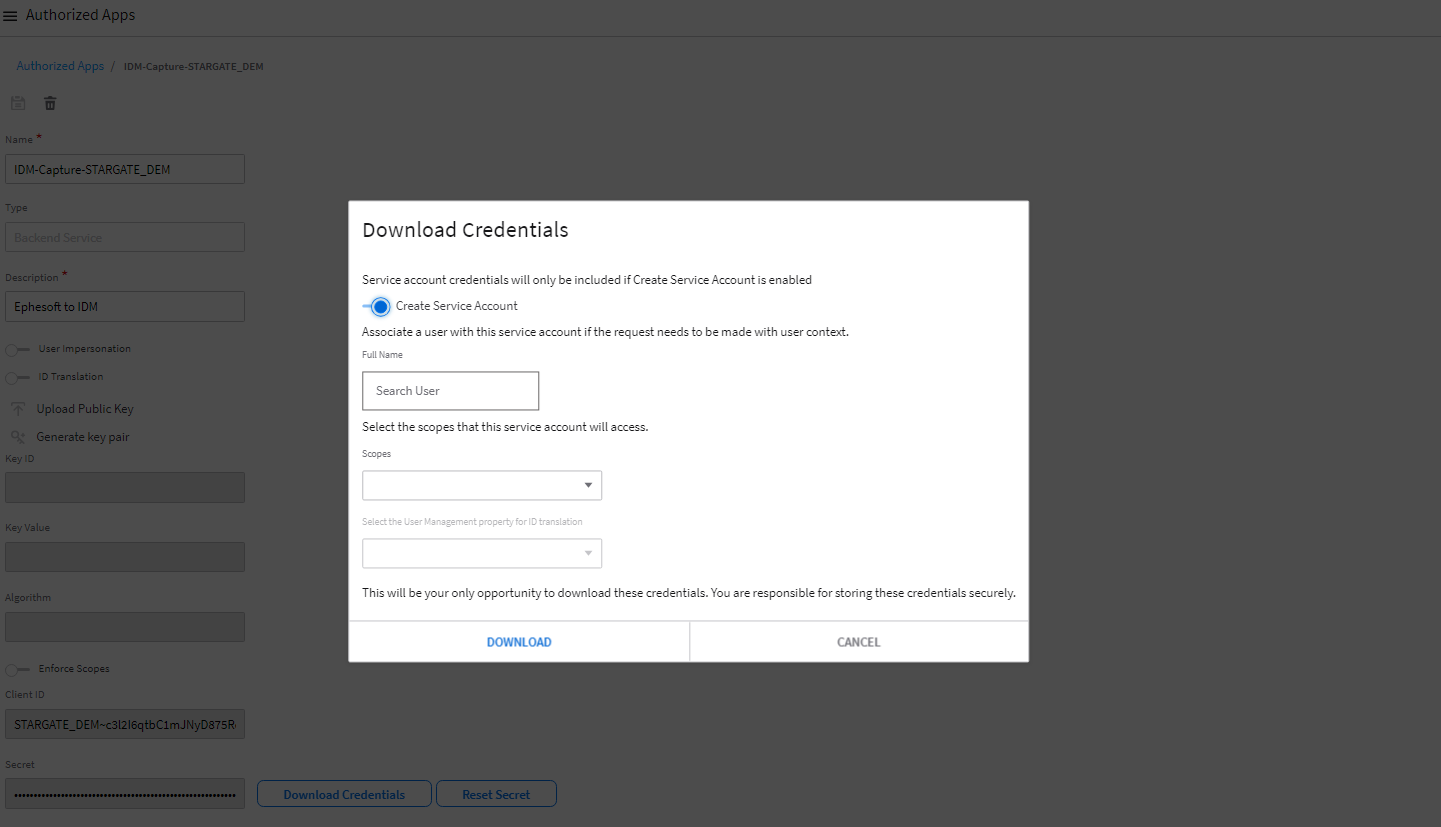
3. Click on the API → Scroll to Download Credentials → Click Download.
4. Enable "Create Service Account", enter your name, and download the file.
4
Running the Tool
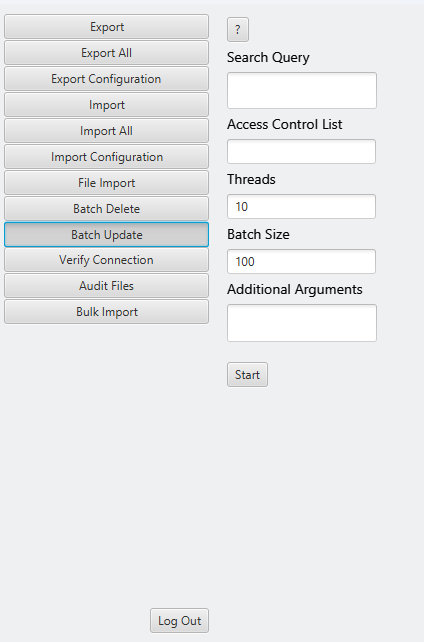
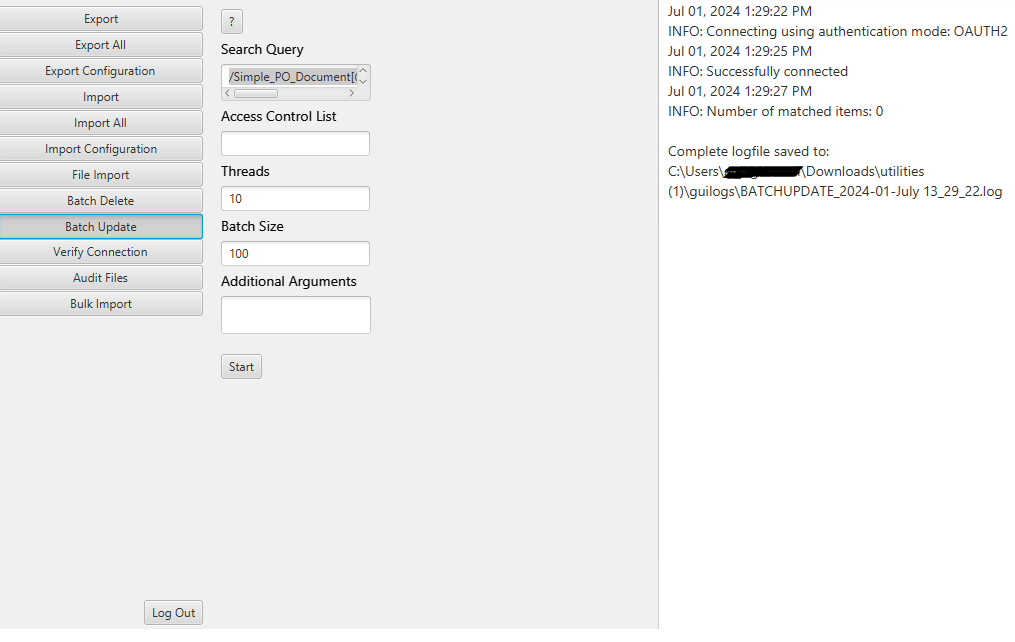
Using the previously mentioned JAR command, start the tool and upload the IONAPI file. The interface should resemble the following:
Select the Batch Update tab.
Important Notes:
- The XQuery must not reference documents after they’ve been edited to avoid an infinite loop.
- Thread and Batch Size are set to their default maximum values.
- You can optionally set the ACL for the documents.
- Additional arguments specify attributes to change, e.g.:
MDS_Name "ABC" MDS_Status 20
5
(Optional) Generating XQuery
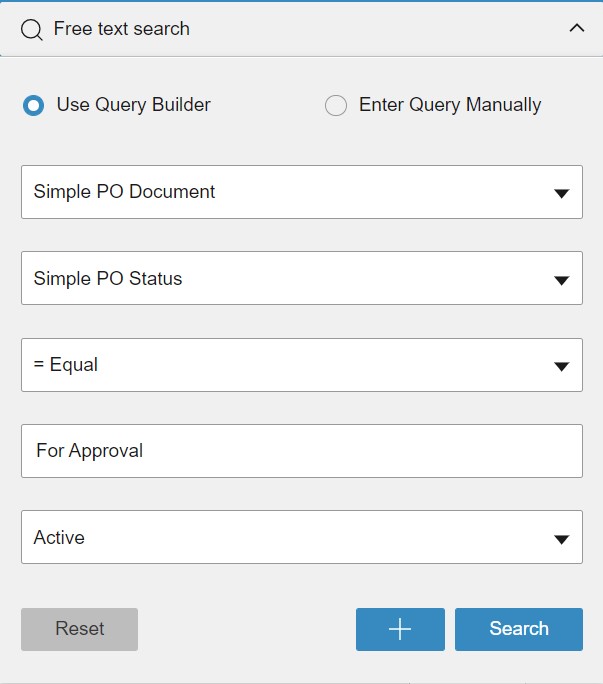
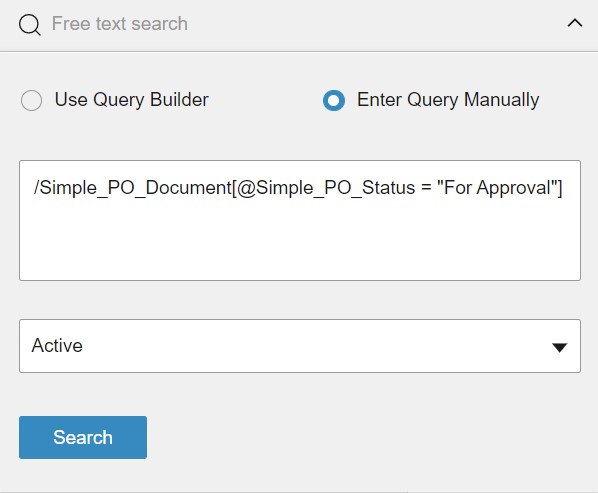
For those unfamiliar with XQueries, use the IDM XQuery Builder to create one.
- Open IDM XQuery Builder within IDM.
- Enter your search criteria.
- Click "Enter Query Manually" to generate the XQuery.
Example Query:
/Simple_PO_Document[@Simple_PO_Status="For Approval"]
Video Guide
Command Line Arguments
To run IDM Utilities via command line, use:
| Search query. If used alone, it returns only the number of matched documents without making changes. |
| (Optional) Sets an access control list (ACL) on matched documents. |
Example Command:
java -jar <ExecutableJarFileName>.jarExample:
java -jar Utilities-2022.08.00-47.20220728T090651Z.jar6
Running the Batch Update
Once all arguments and the search query are set, batch processing begins. The screen will look like this:
On this page
- Batch Update from IDM Utilities Tool