Google Data Studio
Step-by-Step guide for integrating Similarweb Website Traffic and Engagement data with Google Looker Studio
Overview
Google Looker Studio (formerly known as Google Data Studio) is a powerful tool that allows you to create detailed visual reports and dashboards by connecting various data sources together. With the new Similarweb connector for Looker Studio, existing Similarweb clients with API access can now seamlessly integrate website traffic and engagement data into their Looker Studio dashboards and reports.
This guide will walk you through the process of setting up the Similarweb connector in Looker Studio, provide an overview of the available data points and parameters, and demonstrate how to combine this data into your existing Looker Studio dashboards.
Why Use Similarweb with Looker Studio?
Integrating Similarweb data into Looker Studio provides you with a comprehensive view of your website’s performance and your competitors across various metrics. This flexibility allows you to create custom reports that combine traffic data, engagement metrics, and competitive analysis, all in one place. This empowers you to make more informed decisions based on a holistic understanding of your digital presence.
How to Set Up the Similarweb Website Analysis Connector
Follow these steps to integrate Similarweb data into your Looker Studio reports:
Go to Looker Studio and log in with your Google account.
2. Create a New Data Source:
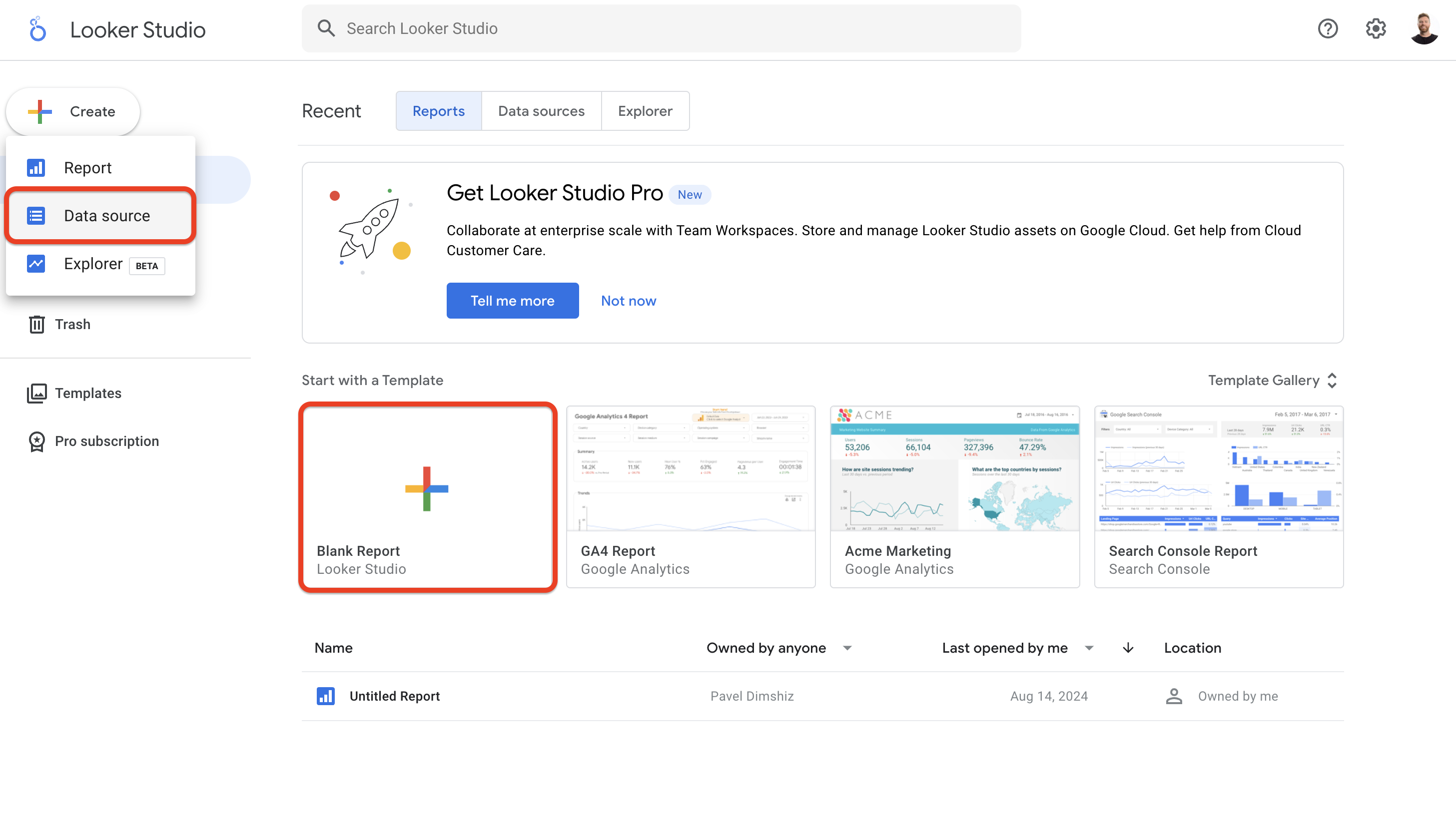
Click on the Create button in the top left corner.
Select Data Source from the dropdown menu.
Alternatively, you can create a Blank Report or use an Existing Report and choose the data source from there.
What made this section helpful for you?
What made this section unhelpful for you?


On this page
- Google Data Studio