Microsoft Copilot Integration
Step-by-step guide for connecting Similarweb’s MCP server to Microsoft Copilot Studio
Follow these steps to integrate the Similarweb MCP Server with your Copilot Studio agent.
1
Open Copilot Studio
- https://copilotstudio.microsoft.com/
Sign in with your Microsoft account.
2
Select or Create an Agent
Copilot Studio
new agent
existing agent

3
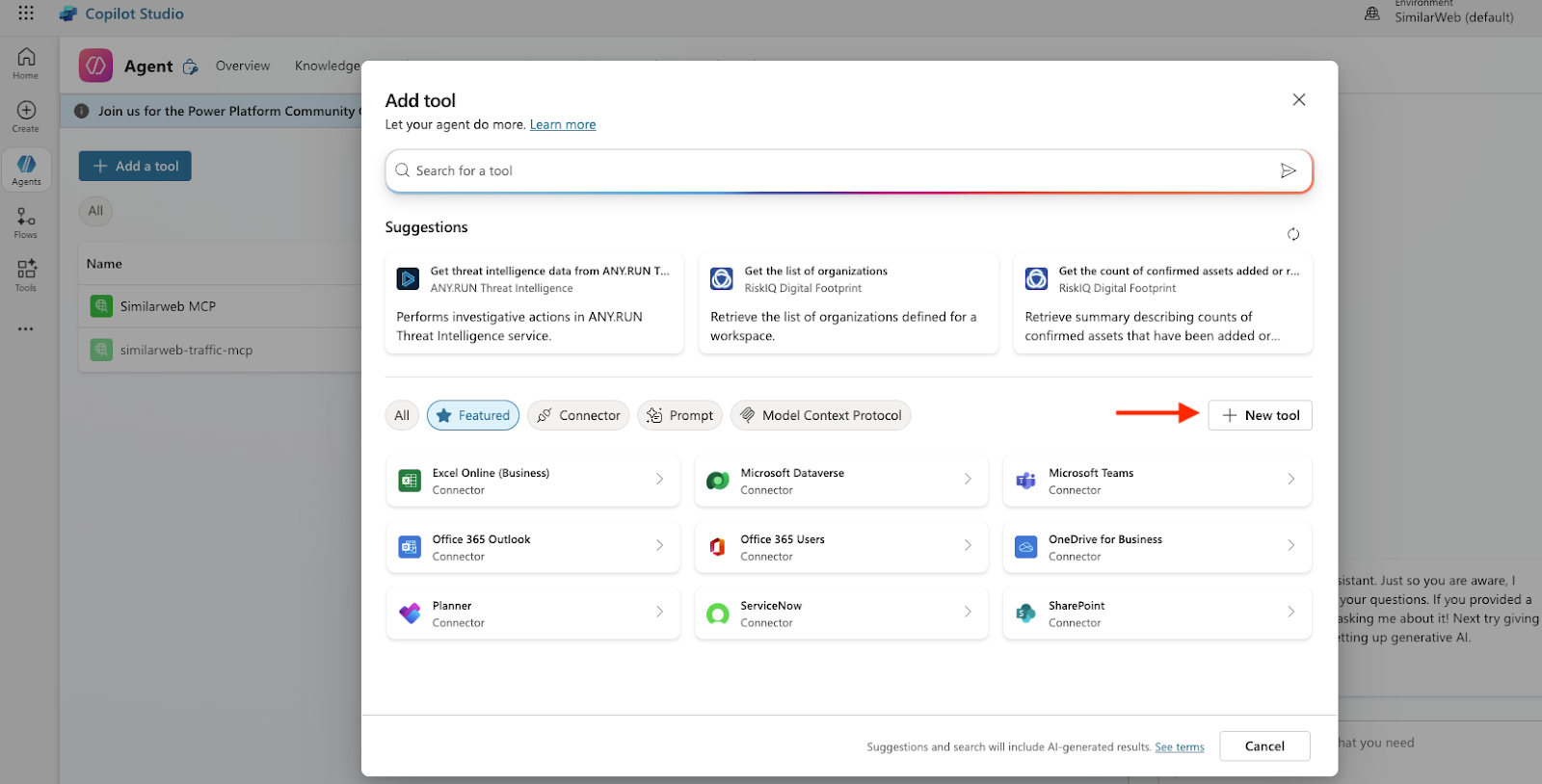
Add the MCP Tool to the Agent
Tools
Add a tool
New tool
4
Configure the MCP Server Entry
New MCP Tool
Title
Description
Field
Value
Server name
Any name you prefer, e.g. Similarweb MCP - Prod
Server description
(Optional) A friendly label or description
Server URL
https://mcp.similarweb.com
Authentication type
API key
Header name
api-key (this is the HTTP header Copilot Studio will send)
Add to agent
Add and configure
5
Create or Attach the Connection (API Key)
Settings → Connection settings
Connection Manager
new connection
Similarweb API key
API key
api-key
attach it to the MCP tool
6
Verify the Connection
Connection Manager
Connected
Connected
Run a quick test:
Invoke the agent directly in Copilot Studio, or
test prompt/workflow
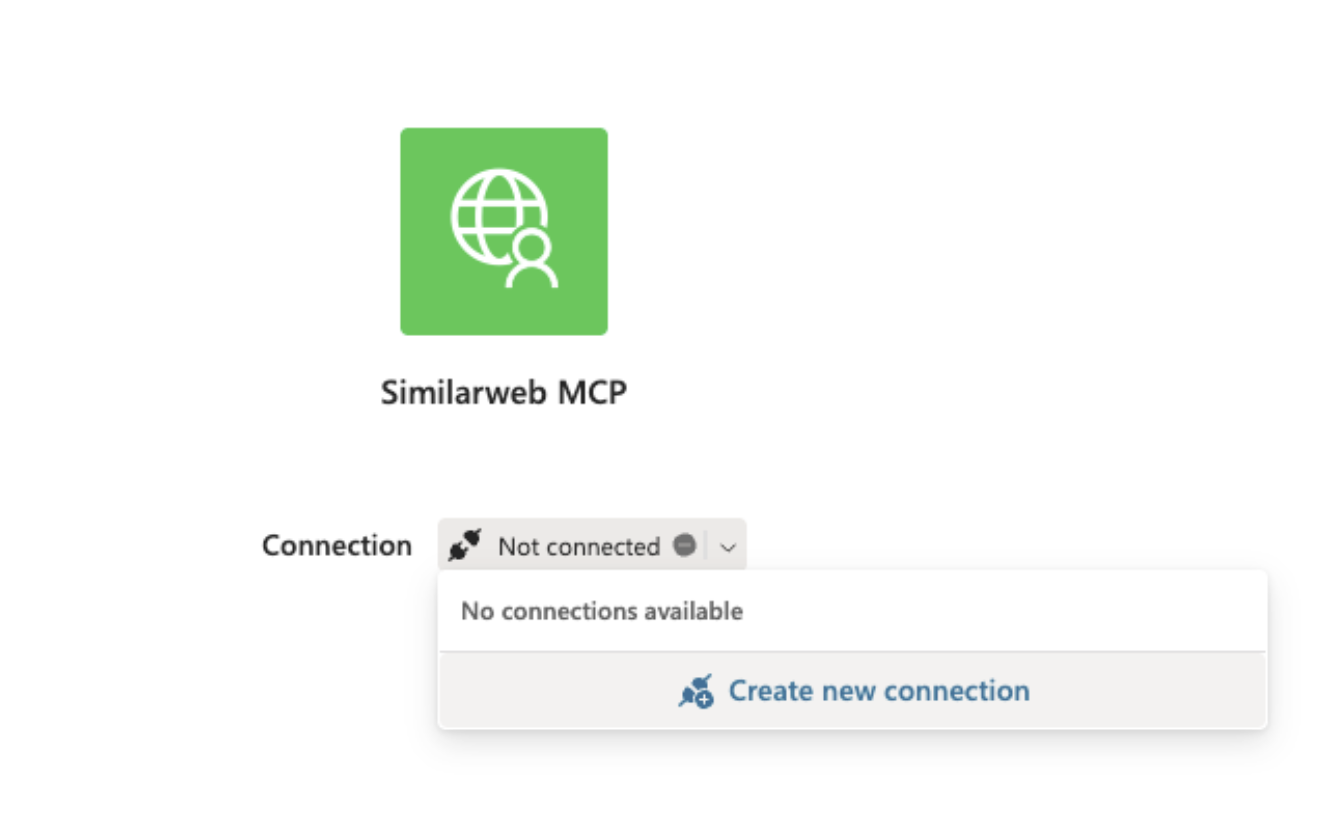
If everything is configured correctly, the MCP tool should respond or appear in the agent run logs.
You’re all set!
Similarweb MCP Server
What made this section helpful for you?
What made this section unhelpful for you?


On this page
- Microsoft Copilot Integration