Amazon S3 Integration
Access your Similarweb Batch API reports via Amazon S3.
Access your Batch API reports directly from an Amazon S3 bucket maintained by Similarweb, so you can easily process your custom reports and automatically integrate them into your own database systems.
Compatible with Similarweb Batch API only
To get access, speak to a Similarweb representative.
Setup instructions
1
Create a new S3 connection
Start by creating a new S3 integration to store and access data. This setup generates AWS access and secret keys that allow you to interact with your data securely in the specified S3 bucket.
2
Save your credentials
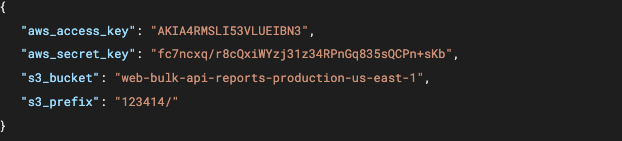
After creating the connection, you receive private credentials including AWS access keys. These keys are essential to access the shared S3 bucket securely — store them in a safe place.
3
Generate a report using the create-table URL
Creating a table is similar to requesting a one-time report, but you modify the delivery information and call the create-table URL instead. This sets up a table that will store data continuously.
4
Modify the delivery information
Adjust the delivery_information block to define where and how the data is delivered. Set the delivery method to bucket_access to store the data in your S3 bucket.
5
Specify the integration name
Set the integration_name parameter to s3_default to direct data to the appropriate integration.
6
Name your table
Provide a unique name for your table. This name is used to identify and manage the table in your S3 bucket — choose something that corresponds to the data you'll store.
7
Run the request
Once you've filled out the request body, submit it to create the table. After submission, the table is set up in your S3 bucket and the requested data is added to it.
8
Retrieve the table path
After the table is created, you receive a location representing the S3 path where the table data is stored. Use this path to access the stored data.
9
Add data to the table
To append more data to the table after it's been created, use the request-report URL. This adds new data to the existing table without replacing it.
10
Send data to the table
By specifying the same integration_name and table_name as before, new data is added to your existing table. This keeps your data up to date with additional information as needed.
11
Keep field names consistent
When appending data, response_format, delivery_method, integration_name, and table_name must match the values you used when the table was first created.
To access your reports securely via the S3 bucket, use the ‘Get-S3-Credentials’ endpoint to retrieve a personalized AWS access key.
Endpoint-
[GET] https://api.similarweb.com/batch/v5/s3-connector/setup
Response - 200 OK


On this page
- Amazon S3 Integration