Export / Import Code
If you need to add functionalities or customize the appearance of your HTML beyond what is available in the Theneo Developer Portal's online editor, such as intricate hover effects or specific color gradients, exporting and editing your code is a straightforward process. Here's a detailed guide to exporting your code for customization and then importing it back into the Developer Portal.
Exporting Code for Advanced Customization
1
Step 1: Export Your Code from the Developer Portal
- Navigate to the Developer Portal.
- Access the code editor by clicking on the code icon.
- Click on "Export to ZIP" to download your current project's code.
2
Step 2: Customize Your HTML and CSS Code
- Extract the ZIP file on your local machine.
- Open the HTML and CSS files in your chosen text editor for modifications.
You can now add custom styles or scripts that you require. For example:
- To change a hover effect color or gradient, you can directly modify the CSS.
3
Step 3: Merging HTML and CSS Files for Import
- Create a
<style>tag in the HTML file, and paste all the styles from the CSS file into this tag. - Ensure that for both dark and light themes, there is a
<div class="content-wrapper">for the light theme. To enable dark mode, add the class<div class="content-wrapper dark-theme">.
Importing Customized Code Back into the Developer Portal
- Return to the Theneo Developer Portal.
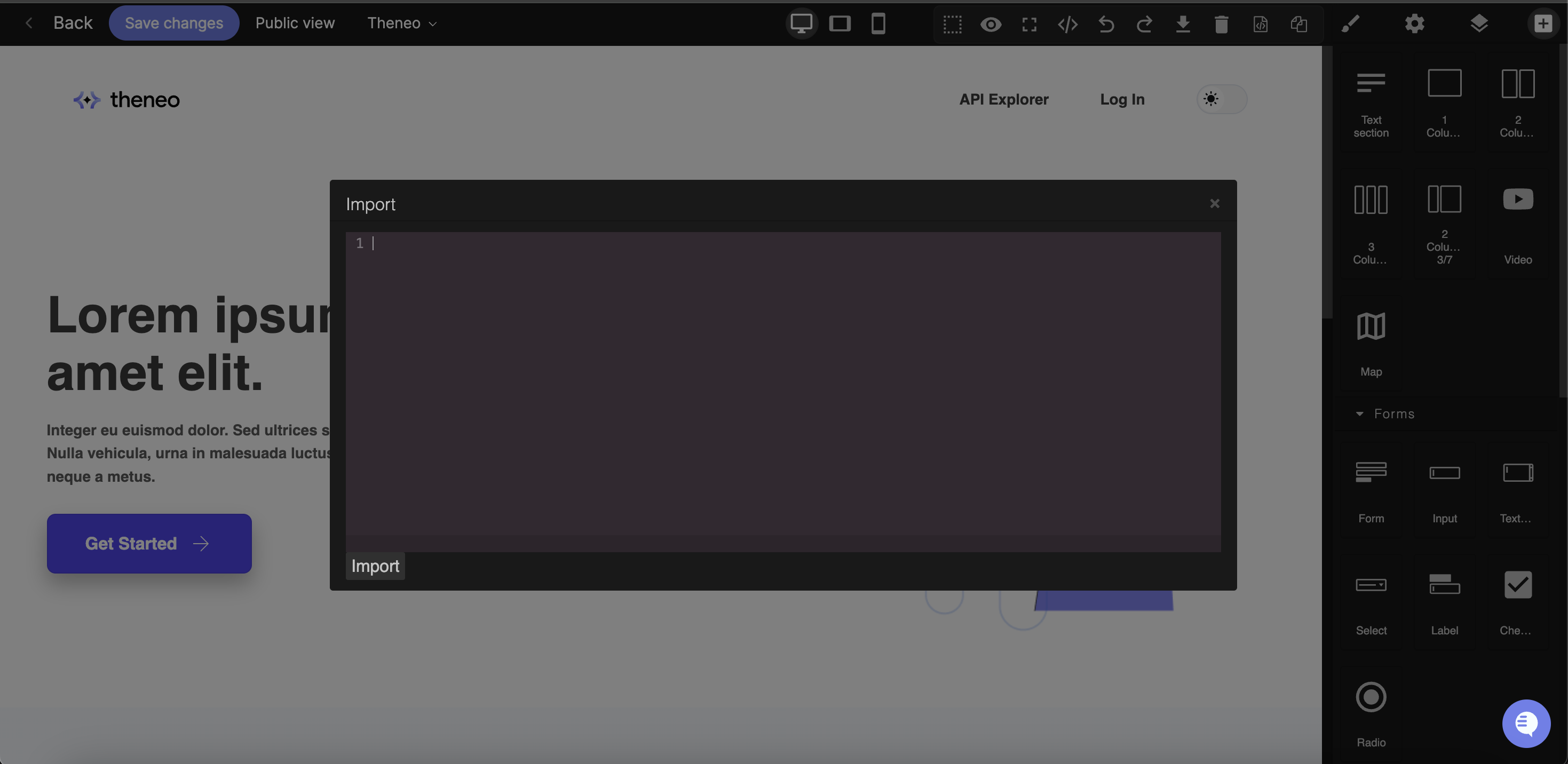
- Click on the import icon within the code editor.
- You can now paste the updated HTML code directly into the editor.
Was this section helpful?


On this page
- Export / Import Code