Theneo UI
Theneo's published view is crafted to enhance user experience, offering a seamless and intuitive interface for navigating and reading API documentation. This section aims to elucidate the key features of Theneo's published view, providing you with detailed insights and instructions to fully leverage the capabilities of our documentation system. By understanding and utilizing these features, you can streamline your workflow, improve accessibility, and ensure an efficient documentation experience.
Side Menu
The side menu is an integral part of Theneo's published view, providing an organized and accessible way to navigate through the documentation.
Features:
- Sections and Subsections: The side menu displays all sections and subsections of the documentation, allowing for quick and easy access to different parts of the content.
- Custom Headers and Icons: Users can create custom headers and add icons for a more visually appealing and easily navigable menu.
Continuous Scrolling
Theneo's continuous scrolling enhances navigation by allowing you to scroll through the documentation without needing to click to navigate to other pages.
Benefits:
- Seamless Navigation: No need to click through multiple pages; just scroll down to continue reading.
- Improved User Experience: Continuous scrolling ensures a smooth and uninterrupted reading experience.
Search and AI Search
Finding specific information within the documentation is made easy with our search functionalities.
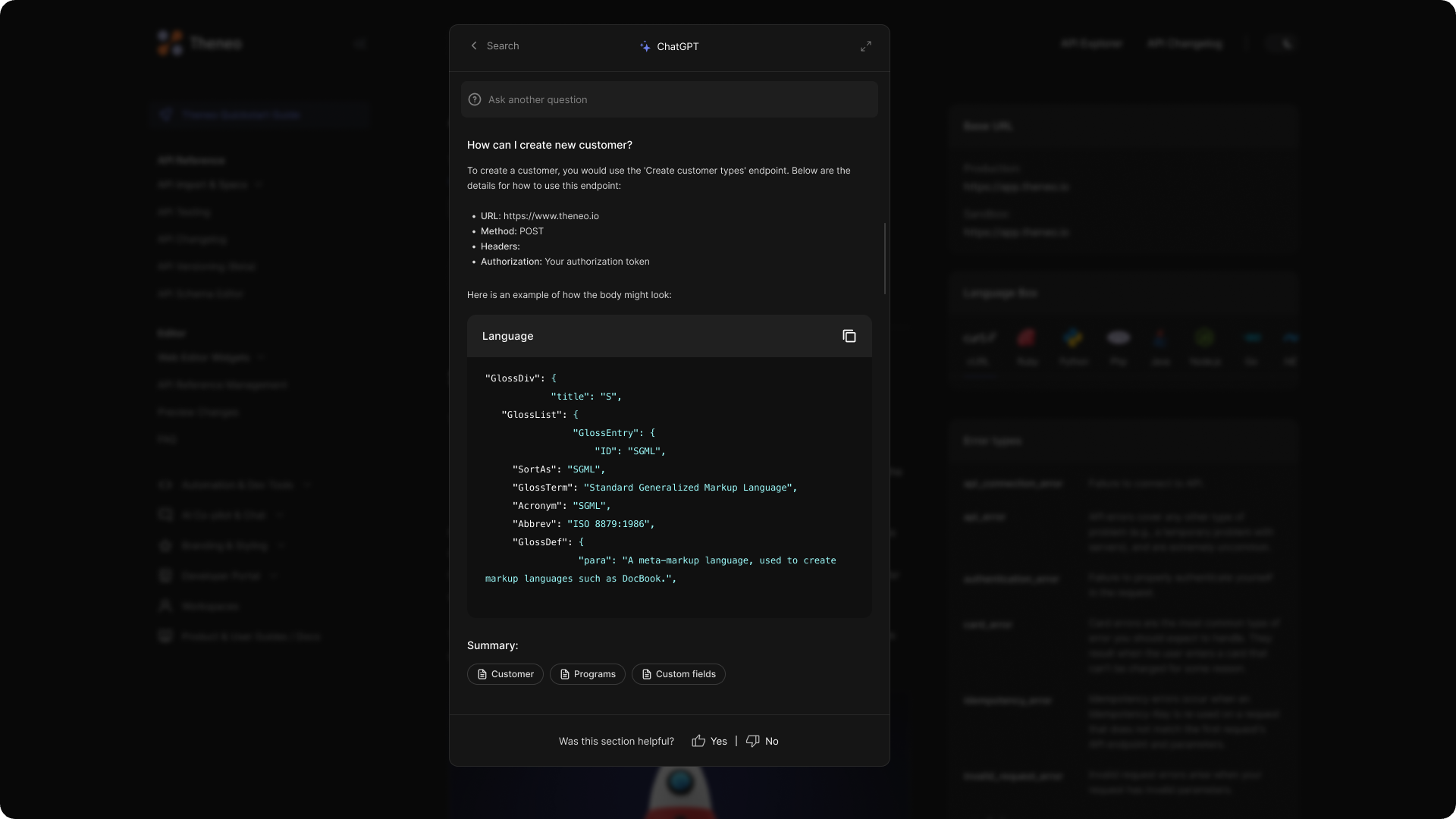
Features:
- Standard Search: Quickly locate content by typing keywords into the search bar.
- ChatGPT Search: Utilize the power of ChatGPT to search for documentation content with more natural language queries.
Custom Menu
The custom menu feature allows you to add any item or group of items in a dropdown for shortcut access.
Customization Options:
- Add Items: Include any documentation pages, links, or tools you frequently use.
- Group Items: Organize related items into groups within the dropdown for easier access.
Custom Menu Main Button Highlighting
To make navigation even more intuitive, the Main Button feature allows users to mark one item (excluding subitems) as the main button in the custom menu. This visually distinct button serves as a primary point of focus in the menu.
Main Button Design in Published View:
- The Main Button will have a distinct design with a highlighted background to make it stand out from other menu items.
- This ensures that users can easily identify the most important or relevant section of the documentation at a glance.
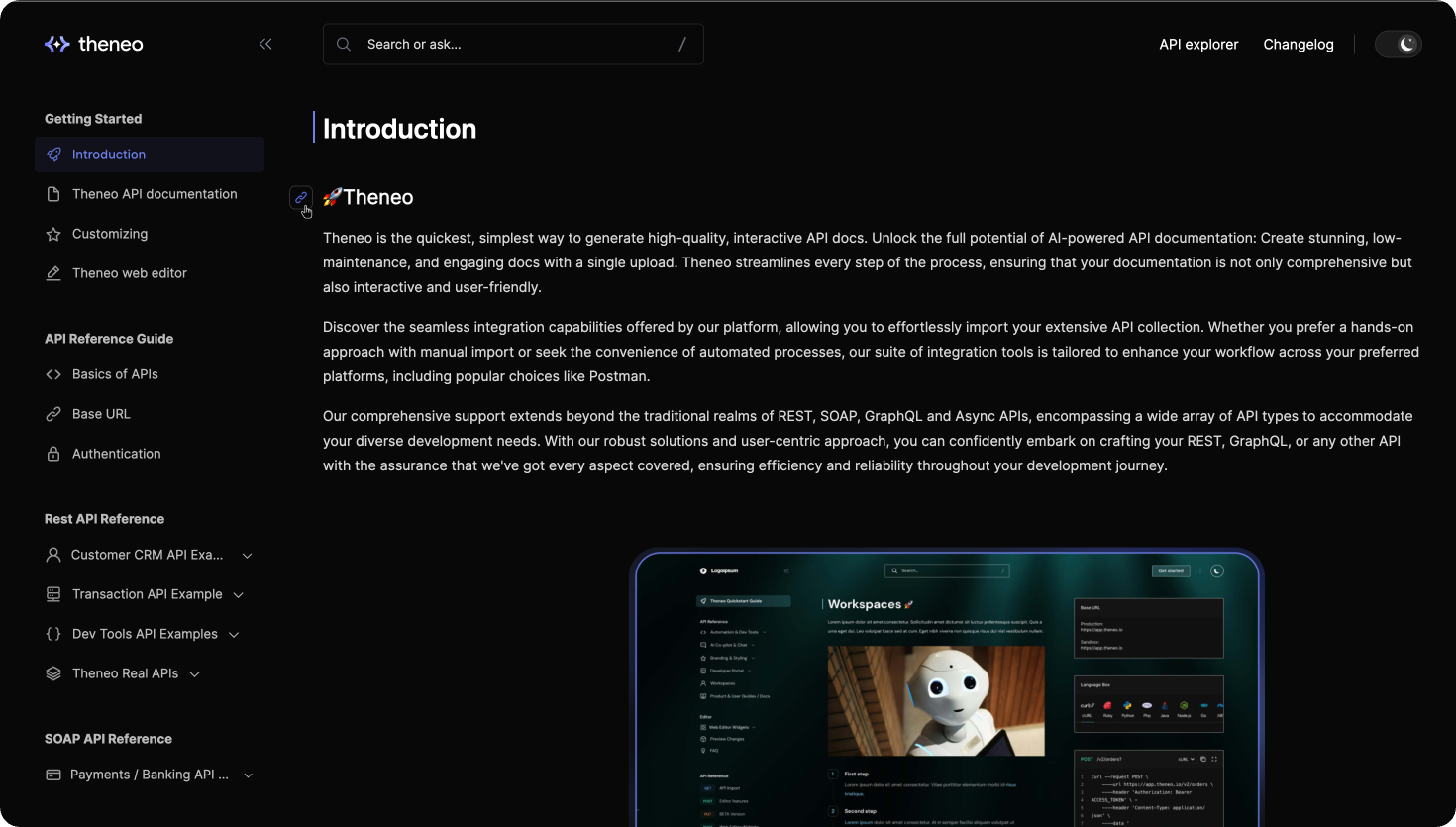
Anchor Tags for Headers
Anchor links enhances the ability to share and reference specific parts of the documentation.
How it Works:
- Anchor Tags: Each header in a section is equipped with an anchor tag, allowing you to link directly to that header.
- Easy Referencing: Share the URL with the specific anchor tag to direct others to the exact part of the documentation you are referencing.
HTTP Method Display in the Side Menu
In your API documentation, you can choose to display HTTP methods (GET, POST, PUT, DELETE, etc.) for each endpoint directly in the side menu. This feature makes it easier for users to quickly identify the type of request each endpoint supports.
Configuring the HTTP Method Display Option
To enable this feature, follow the steps below:
- Navigate to Project Settings:
- Go to your project's dashboard and open the Project Settings.
- Locate the Features Tab:
- Inside Project Settings, click on the Features tab to access additional project configuration options.
- Enable the HTTP Method Display:
- In the Features tab, find the toggle option labeled HTTP Method Display.
- By default, this option is turned off. Switch the toggle to on to enable it.
- Republish the Project:
- After enabling the HTTP Method Display, republish your project to apply the changes.
Once republished, the HTTP methods will be automatically displayed next to each endpoint in the side menu, making the documentation more intuitive for developers.

FAQ
Can I disable continuous scrolling and have only one page at a time?
Can I disable continuous scrolling and have only one page at a time?
Yes, with our recent updates, you can switch between continuous scrolling and the single-page template based on your specific needs and document structure. To do so, navigate to the Project Settings on the dashboard, locate the 'Single Page Template' option, and toggle it on.
Can we have a section as a link?
Can we have a section as a link?
Yes, you can set a section as a redirect link in your documentation. To do this, follow these steps:
- Navigate to the Editor:
- Go to the project's editor where you manage your documentation.
- Choose the Section:
- Select the section where you want to set the redirect link.
- Open the More Actions Menu:
- Click on the three-dot menu (More Actions) next to the section.
- Set the Redirect Link:
- In the menu, find and click on the option labeled "Set Redirect Link".
- Paste the desired URL into the input field provided.
- Optional: Open in a New Tab:
- If you'd like the link to open in a new tab, check the "New tab" option.
- Save and Publish:
- Save the changes and republish your documentation. The section will now redirect users to the specified link.


On this page
- Theneo UI